
Product updates
Introducing Full notes in Vyxora
Choose a Note and supporting material, generate a deeper reading, and check the original passages behind it. See examples and access limits.
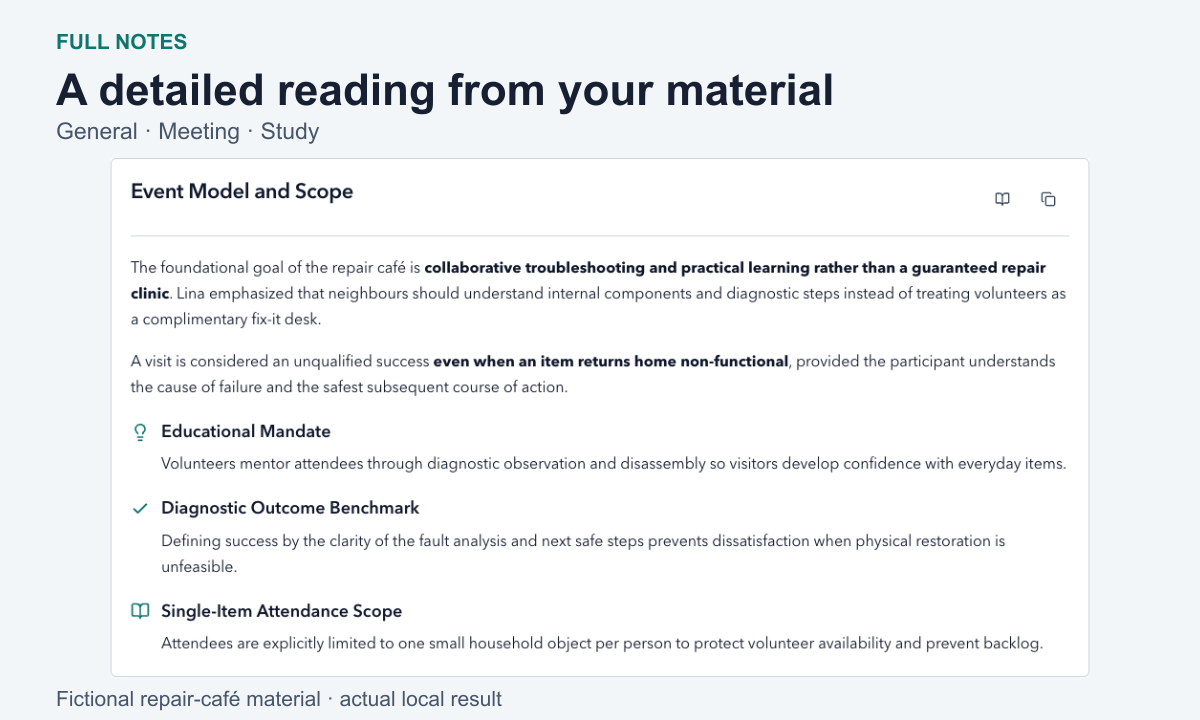
Open a completed Note and choose Full notes for a detailed reading, with comparisons, worked examples, or interactive sections when they help.
You choose when to generate it and which ready supporting sources to include. The result is saved beside Overview, so you can return to the explanation and inspect its original passages later. Explore Full notes.
Choose the material before generating
The original recording transcript or extracted document text stays included. Open Sources and instructions to select ready supporting material and, if useful, describe what you want to understand. You might include a lecture's slides, a meeting agenda, or a brief that explains the background to an idea. Instructions are optional.
Adding a source or opening the Full notes tab does not generate a reading. Review the displayed cost, then choose Generate full notes. You can leave while it prepares and return to the saved result. Later additions do not silently regenerate it: use Update full notes when you want a fresh reading. These controls and limits are documented in the Full notes guide, checked November 17, 2026.
Read the explanation that fits the Note
The three modes serve different material. They do not require one fixed page structure or guarantee the same interaction in every result.
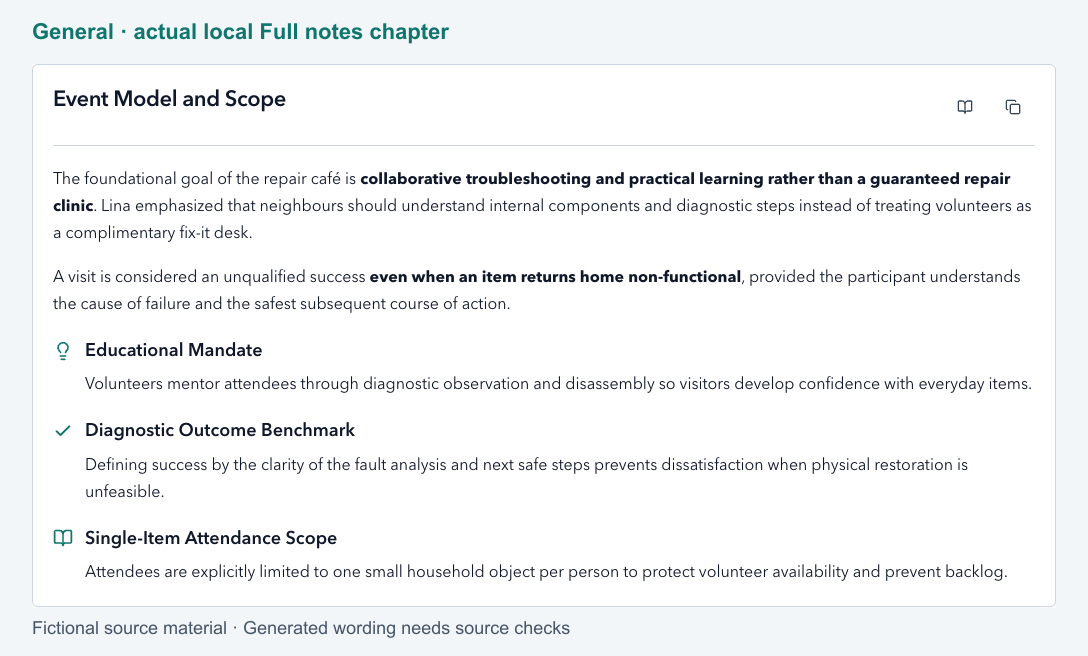
General develops ideas and their relationships. A repair-café planning discussion, for example, can need an explanation of the tradeoff between a busy drop-in session and a slower booked session. A useful reading keeps the reasons and constraints attached to those options.
In the actual local reading, our fictional café discussion became chapters about the event model, session formats, venue and safety, and coordination. It also included an interactive exploration. One explanation overstated what bookings could guarantee about crowding; the original source did not establish that outcome. The generated explanation still needed a source check.
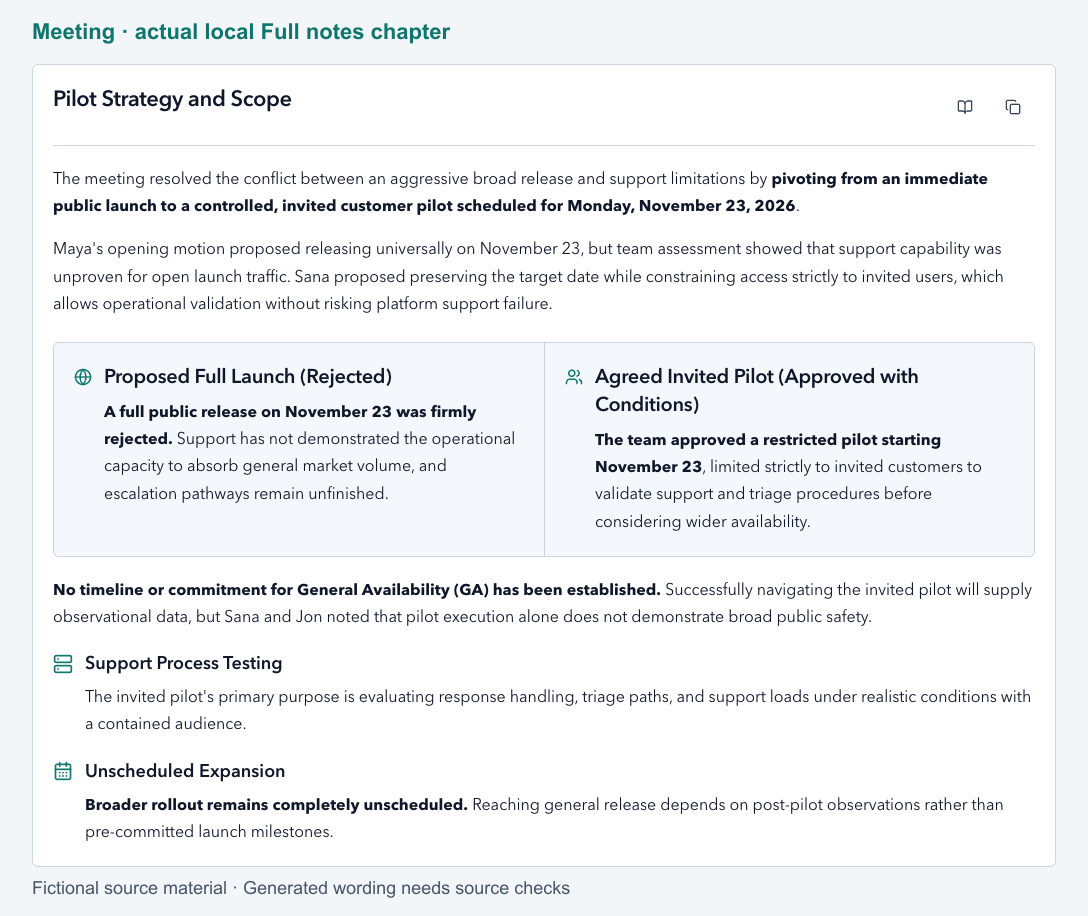
Meeting explains how a discussion reached its outcome. Our fictional rollout discussion generated chapters that compared the opening public-launch proposal with an invited pilot. The reading retained the November 20 readiness review and the absence of a general-availability date. The pilot start was conditional in the source; a heading about an approved pilot should not be read without those conditions.
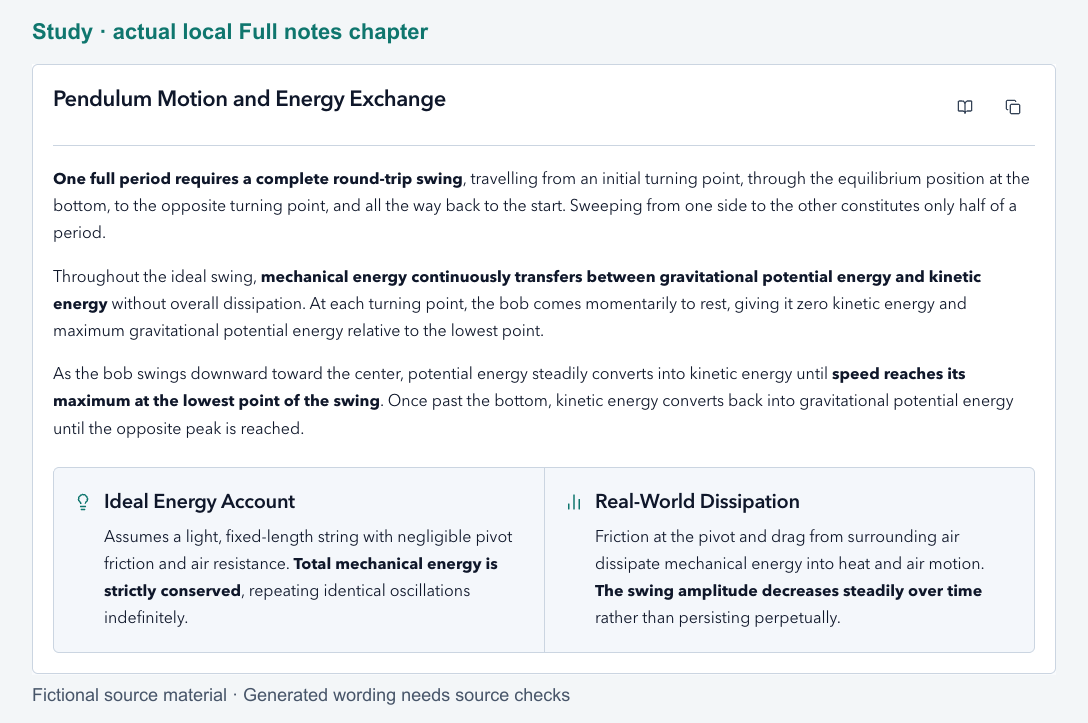
Study develops explanations, examples, and useful ways to practise. In our fictional pendulum lesson, the generated reading kept the small-angle condition beside the formula, compared the one-metre and four-metre calculations, and left the large-angle correction unresolved. It included a length-and-mass exploration. Our study-guide walkthrough shows how to build and check a guide from the same material.
These three readings were generated locally on November 17, 2026 from fictional material. They are examples of actual output, not a promise of identical chapters or activities for every Note.
Open the original passage when a detail matters
Use the source control beside a chapter to inspect its supporting material. The source view highlights the cited wording in the original text. Only excerpts focuses on supporting quotations and marks omissions between them. Close the view to continue reading from your position.
The explanation is generated; the original passage is what you check. A useful comparison or illustrative model does not establish that a particular event happened in a meeting. Document extraction also matters: anything omitted during reading remains a limitation for Full notes. See source previews and extracted text.
Keep the same tasks beside the deeper reading
The task panel follows the chapters: Action items in Meeting, Next steps in General, or Review checklist in Study. It is the same saved list used in Overview. Completing, reopening, editing, or deleting a task applies in both views.
Where supporting material is available, More info expands a task's explanation and View sources opens its evidence. Additional suggestions remain separate until you choose Add to tasks. Updating the reading does not reset your saved tasks, and accepting a suggestion uses no generation credits. An interactive exploration does not perform external actions or silently change those tasks. Task behavior in Full notes.
Know the cost and what stays available
New generation and updates require Plus or Pro. Plus includes 20 Full notes credits a month; Pro includes 60. A request uses one credit per 50,000 selected source tokens, rounded up, and the cost is shown before you start. These credits are separate from ordinary Note generations and document processing credits. Check the current plans before choosing one.
Internal retries are included. A completely failed preparation returns its reserved Full notes credits. Reading a saved result, copying it, and using its local interactions do not consume credits. Previously generated eligible readings remain readable and exportable after a downgrade. Current credit and access policy.
Copy the whole reading or one section when you need it elsewhere. The website also offers Markdown download. Exports retain prose, citations, and written versions of interactive material; they do not run the live controls. Review the file before sharing because it can contain source excerpts.
Generated explanations can still be mistaken or incomplete. Start with material you have permission to process, check important details against it, and use the optional instructions to name the part you want to understand.