Buying guides
AI Note Takers Without Meeting Bots: What to Check Before You Choose
Compare browser and desktop recording, audio handling, note checking, and plan limits with a practical trial for bot-free AI note takers.
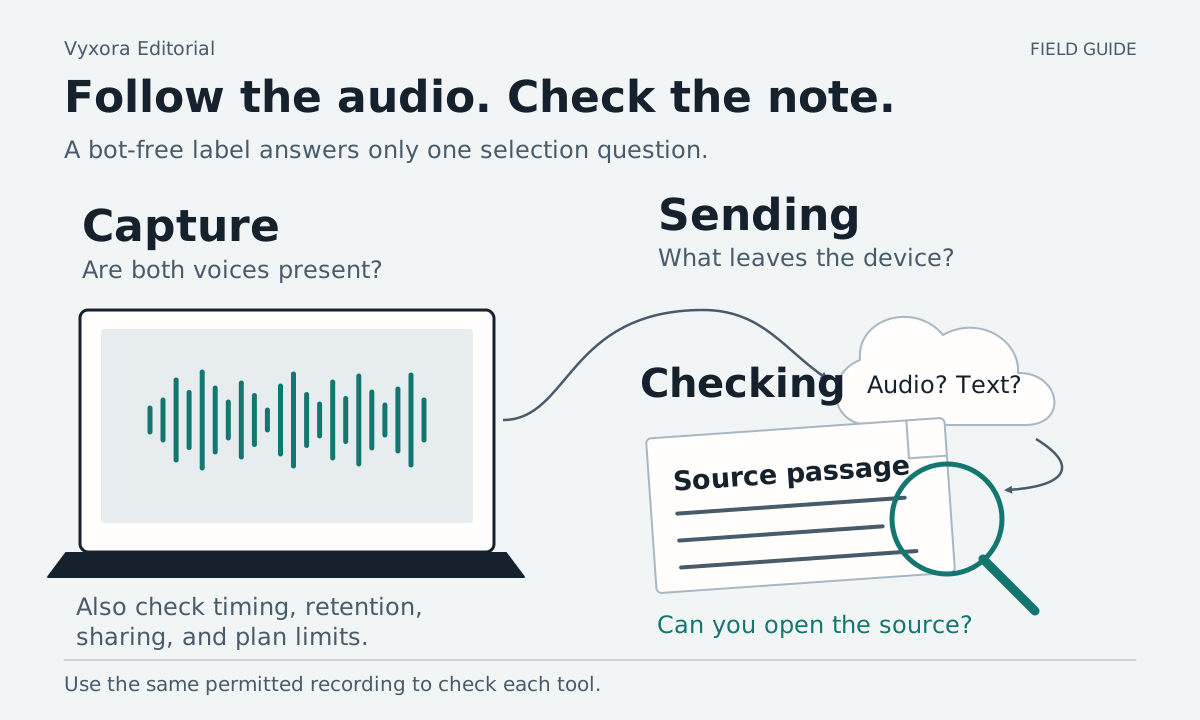
A note taker can record from your device without adding a participant to the meeting. To choose one, check how it captures both sides of your call, when it sends information to its service, and what you can inspect after the notes are written.
Start with the device and meeting app you use. A browser extension that works on Google Meet may not offer the same experience in a desktop Zoom call. “Bot-free” describes the absence of an added meeting participant; the product's recording and data-handling details still need checking.
Vyxora publishes this guide and sells an AI note-taking product. The examples below come from official documentation checked on October 4, 2026. They are a selection guide, not an independently tested ranking.
Match the capture method to your calls
| Capture method | What to check |
|---|---|
| Browser tab and microphone | Does the extension support your meeting site and capture your voice as well as the tab? |
| Desktop system audio and microphone | Does it support your operating system and the devices your meeting app uses? |
| Microphone only | Will the microphone hear all intended speakers, including people joining remotely? |
| Existing recording upload | Do you already have an approved audio file, and does the service accept its format and size? |
Ask for support details for your exact setup: for example, Google Meet in Chrome on a Windows laptop with a headset. A broad claim about supporting “meetings” leaves several of those questions unanswered.
Some documented options illustrate why the scope matters:
- Vyxora Capture offers microphone, tab, and computer-audio sources, with audio staying local until Create Note. This guide focuses on its Chrome and Brave setup. See the capture workflow.
- Granola describes capturing system audio and microphone sound on Mac and Windows for Zoom calls, without a bot. See its Zoom recording guide.
- Fireflies Live Assist in its Chrome extension works without the Fireflies bot on Google Meet in Chrome. Its documentation limits that extension experience to Google Meet. See the Live Assist prerequisites.
- Fathom documents a new bot-free experience available on Mac, with Windows support for that experience coming soon. This does not mean Fathom as a whole lacks Windows support. See its device compatibility page.
These are descriptions of specific recording paths. Check the current documentation before buying, especially when switching operating systems or meeting apps.
Ask when audio leaves your device
Device capture and local processing are separate questions. A product can capture sound on your computer and still send audio or text to a service for transcription and note generation.
Before putting private material into a trial, find answers to these questions in the product's documentation or account controls:
- What is sent: audio, transcript text, or both?
- When does sending start, and can you stop before it starts?
- Can you keep or delete the original recording?
- Who can access the resulting notes, and what does sharing expose?
- What retention and data-use settings apply to your account or plan?
Do not infer the answers from a “bot-free” label or a recording icon. If you cannot tell how the provider stores or uses your information, ask before uploading confidential material.
For any recorder, arrange permission with the people involved and follow your organization's rules. The absence of an added participant does not notify the meeting for you.
Run the same small trial in each tool
Use a short practice call with someone who has agreed to recording. The fictional script below gives you something concrete to check:
First speaker: “The review is on Tuesday.”
Second speaker: “Move the review to Thursday. I will send the draft on Wednesday.”
First speaker: “Thursday is confirmed. The budget still needs approval.”
Run the trial with your usual headset, microphone, meeting app, and browser. Afterward, check the transcript and notes yourself.
| Trial check | A useful result | Reason to investigate |
|---|---|---|
| Both voices | Both speakers' contributions are present | One side of the call is absent |
| Changed date | Thursday appears as the confirmed review date | Tuesday appears as the final date without the correction |
| Follow-up | Send the draft on Wednesday | An invented owner or a different deadline |
| Unfinished decision | Budget approval remains open | The notes say the budget was approved |
| Checking the answer | You can locate the discussion behind the summary | You have only the summary and cannot inspect its basis |
The script tests a few behaviors; it does not establish overall transcription quality. Try a representative permitted recording too if your work includes accents, technical terms, or several speakers talking together.
Check the work you do after the meeting
Once capture works, choose around the next task. You may need to write a follow-up, check an exact decision, search several meetings, export a transcript, or keep project documents beside the notes.
Test that task directly. For a changed decision, ask “What review date was confirmed?” and inspect the passage behind the answer. For cross-meeting questions, add two related meetings and check that the answer identifies the right meeting. Record platform or plan restrictions you encounter instead of assuming the feature is available in every version.
Vyxora lets you ask a completed Note or connect related Notes in a Workstream and open supporting passages. Its Notes page explains these checks. AI answers still need review; a citation is a place to inspect the claim, not a guarantee that the answer interpreted it correctly.
Check limits against a normal week
Compare the cost of your expected recording minutes, storage, uploads, and question usage. Check whether a quoted monthly price requires annual billing and whether a limit resets monthly or applies to stored material. A plan name alone will not tell you whether a busy week fits.
Keep a short record for each candidate: your exact device setup, the trial result, the after-meeting task you completed, and the relevant plan limits. Choose the tool that passes the checks you need. Leave an unanswered requirement marked unknown instead of treating it as a pass.