Buying guides
How to Choose a Note-Taking App for Your Computer
Test a note-taking app with your own notes, offline needs, search habits, export requirements, collaboration, and full switching cost.
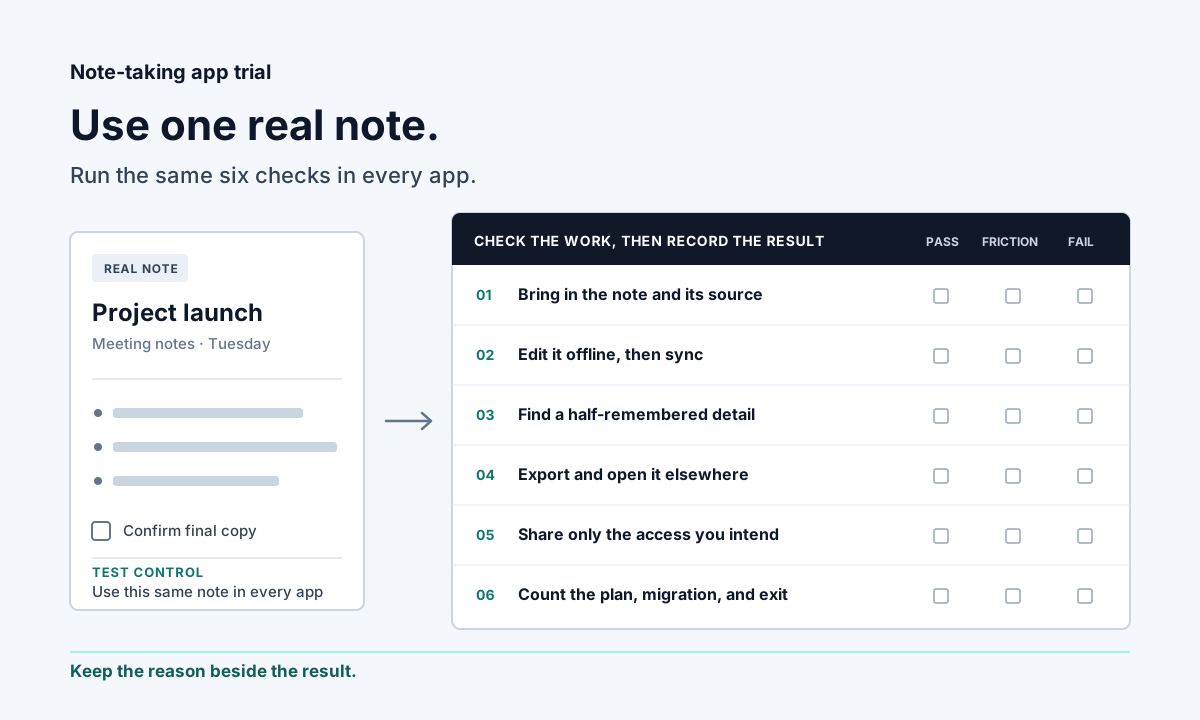
Take one note you made last week and try to use it again. Find a detail, add a source, make a change without internet access, share it with the right person, then export it somewhere you can open without the app. That small trial will tell you more than a list of 80 features.
This guide gives you a repeatable way to run that trial. It also includes a one-page scorecard you can print or fill in by hand.
Start with a note you already have
Do not begin by rebuilding your whole system. Pick one note that represents ordinary work: meeting notes with tasks, lecture notes with a diagram, research notes with links, or a project update that changed twice.
Make a small test packet:
- One note you wrote recently
- One attachment or source you normally keep with it
- One fact you would need to find a month later
- One update you might make away from Wi-Fi
- One version you could send to another person
Copy the same packet into every app you are considering. Keep the source material and the questions identical. You are testing how the app handles your work, not how polished its sample workspace looks.
Check what the app can take in
List the material that becomes a note in your real week. Typed text may be enough. You may also need handwriting, images, scanned pages, web clips, PDFs, audio, transcripts, spreadsheets, or email.
Then try the awkward input, not the easy one. Paste a note with links and headings. Add the large PDF. Import the Markdown file. Record the short voice memo. Check what survives after import and what becomes a flat attachment.
Write down any cleanup. An import that takes three minutes once may take hours across an archive.
Test the computer and the bad connection
Install or open the app on the computer where you will use it. Check the exact operating system and browser rather than assuming every version behaves the same.
Next, make the test note available, disconnect from the internet, restart the app, and edit it. Reconnect and confirm that the edit reaches another device. If the app asks you to download individual pages first, include that step in your result.
Offline support is rarely a useful yes-or-no label. You need to know which notes are stored locally, which attachments remain available, how conflicts appear, and whether offline access depends on a paid plan.
Search for the detail, not the title
Wait until the test note is no longer fresh in your head. Search using the half-remembered phrase you would type in real life.
Try these checks:
- Find a word inside the note.
- Find a phrase inside an attachment, if the app claims to search attachments.
- Narrow results by date, tag, folder, or note type.
- Search for an idea using different wording from the original note.
- Open the result and identify why it matched.
The fifth check keeps a clever-looking answer from hiding a weak retrieval trail. If the app generates an answer, inspect any source link or passage it provides.
Export enough to leave
Export the test note before you commit to the app. Open the exported file outside the product and check the text, links, attachments, headings, tables, tasks, and dates.
Then ask a harder question: can you export the whole collection in a reusable format, or only print one page at a time? A backup archive may preserve your data without giving you a clean path into another app. Those are different jobs.
Record the export format, what was omitted, and the work required to reuse it. If the export depends on a particular account type, platform, or paid plan, note that too.
Share one note with the permissions you need
Invite a test collaborator or use a second account. Confirm whether the other person can view, comment, edit, reshare, download, or delete the note. If you work together at the same time, check whether edits appear live or only after a sync.
Do the permission test at the smallest useful level. A team may need to share one page without exposing a folder, notebook, or workspace. Also remove the collaborator and confirm what access remains.
Count the full cost of switching
Check the official pricing page on the day you decide. Record the plan you would need after accounting for storage, file size, devices, collaborators, version history, sync, export, and any add-ons.
Then count the migration:
- Time to import and clean existing notes
- Manual work to rebuild links, tags, tasks, or permissions
- New storage or sync subscriptions
- Training for anyone who shares the system
- The cost of leaving if the app stops fitting later
A free editor can still have a paid sync requirement. A paid workspace can still be cheap if it replaces several tools. Use your own volume and workflow instead of comparing sticker prices alone.
Read official documentation as a test plan
Official help pages reveal constraints that a product grid may flatten. These examples show what to verify. They do not rank the products or cover every feature.
| Product | What its official documentation says | What to put in your trial |
|---|---|---|
| Microsoft OneNote | OneNote keeps a local copy for offline editing and merges changes when the connection returns. Full notebook export through OneNote for the web is limited to notebooks in personal OneDrive accounts; Microsoft documents different export options by platform. | Edit offline, then check the sync result. Export from the exact account and computer you plan to use. |
| Obsidian | Obsidian stores notes as Markdown-formatted text files in a local vault. Its optional Sync service handles cross-device sync. Shared Sync vaults require each collaborator to have a Sync subscription, and Obsidian says they do not support live editing of the same file. | Open the Markdown outside Obsidian. If sharing matters, edit the same note from two accounts and inspect the merge. |
| Notion | Notion's desktop and mobile apps can download individual pages for offline use; subpages do not download automatically. Workspace exports can include HTML, Markdown, CSV, and uploaded files, but Notion says an export cannot be instantly restored by reuploading it. | Take the needed page and subpages offline. Export a small workspace and inspect how much structure you could reuse elsewhere. |
| Google Keep | Keep supports notes and checklists, labels, search, and shared editable notes. Google Takeout exports note content, attachments, state, collaborators, and labels. Google documents a limit of 50 labels. | Search a realistic archive, share one note, then open the Takeout export and inspect how you would move it. |
The product names above are examples of different storage, offline, export, and collaboration models. Apply the same checks to any other app on your shortlist.
Use the trial scorecard
Mark a must-have before you open the app. After the test, record what happened in plain language and choose one result:
- Pass: the task worked without a workaround you would resent repeating.
- Friction: the task worked, but the extra steps are worth counting.
- Fail: the task did not work with your required account, device, or file.
| Check | Must-have? | Result | What happened | Dealbreaker? |
|---|---|---|---|---|
| Bring in a real note and its source | ||||
| Use the note on your main computer | ||||
| Read and edit it offline | ||||
| Find a detail with an imperfect query | ||||
| Export it into a reusable file | ||||
| Share it with the right permission | ||||
| Confirm the plan, limits, and add-ons | ||||
| Estimate migration and exit work |
Take the scorecard with you
When Vyxora belongs in the trial
Vyxora fits a particular starting point: you have an audio recording, transcript, or text-based document and want a structured Note that keeps the transcript and supporting passages nearby. General, Meeting, and Study modes shape the result for different material. Related completed Notes can be grouped into Workstreams to follow decisions, blockers, open questions, and changes over time. Notes can be copied or downloaded as Markdown.
It is a poor fit if you need an offline-first local notebook, handwriting, or live collaborative document editing. The browser workspace requires a connection. PDF reading supports scans and mixed languages, while image-only Word pages or PowerPoint slides need PDF export. Vyxora is not a shared document editor. Its public mobile app is also unreleased as of the date this guide was checked.
Those boundaries should be part of the same trial. Use the app that handles the material and constraints you have, even when that rules Vyxora out.
Sources checked on August 25, 2026
- Microsoft Support: Sync a notebook in OneNote
- Microsoft Support: Export OneNote notebooks
- Microsoft Support: OneNote platform data protection and recovery
- Obsidian Help: How Obsidian stores data
- Obsidian Help: Introduction to Obsidian Sync
- Obsidian Help: Collaborate on a shared vault
- Notion Help: Use Notion pages offline
- Notion Help: Back up your data
- Google Keep Help: Organize your notes
- Google Keep Help: Share notes, lists, and drawings
- Google Keep Help: Export your data from Google Keep